
Recording payments & deposits
Record money on an order, check bank transfers, set a deposit by hand, void a mistake and give back an overpayment.
User guide
Record money on an order, check bank transfers, set a deposit by hand, void a mistake and give back an overpayment.
An order keeps its money as a list of payments, one row per payment. Each row has its method, reference and who recorded it. Rows are never edited or deleted. What has been paid, what remains and the payment status are all read from that list.
Who can do this:
| Task | Permission | Built-in roles that have it |
|---|---|---|
| Record a payment or a deposit | Record payments | Admin, Store Admin, Cashier |
| Void a payment | Void payments | Admin, Store Admin |
| Verify or reject a bank transfer, assign or dismiss a slip | Verify bank transfers | Admin, Store Admin |
| Refund an overpayment | Process refunds | Admin, Store Admin, Cashier |
| Set the deposit by hand | Edit orders | Admin, Store Admin, Cashier |
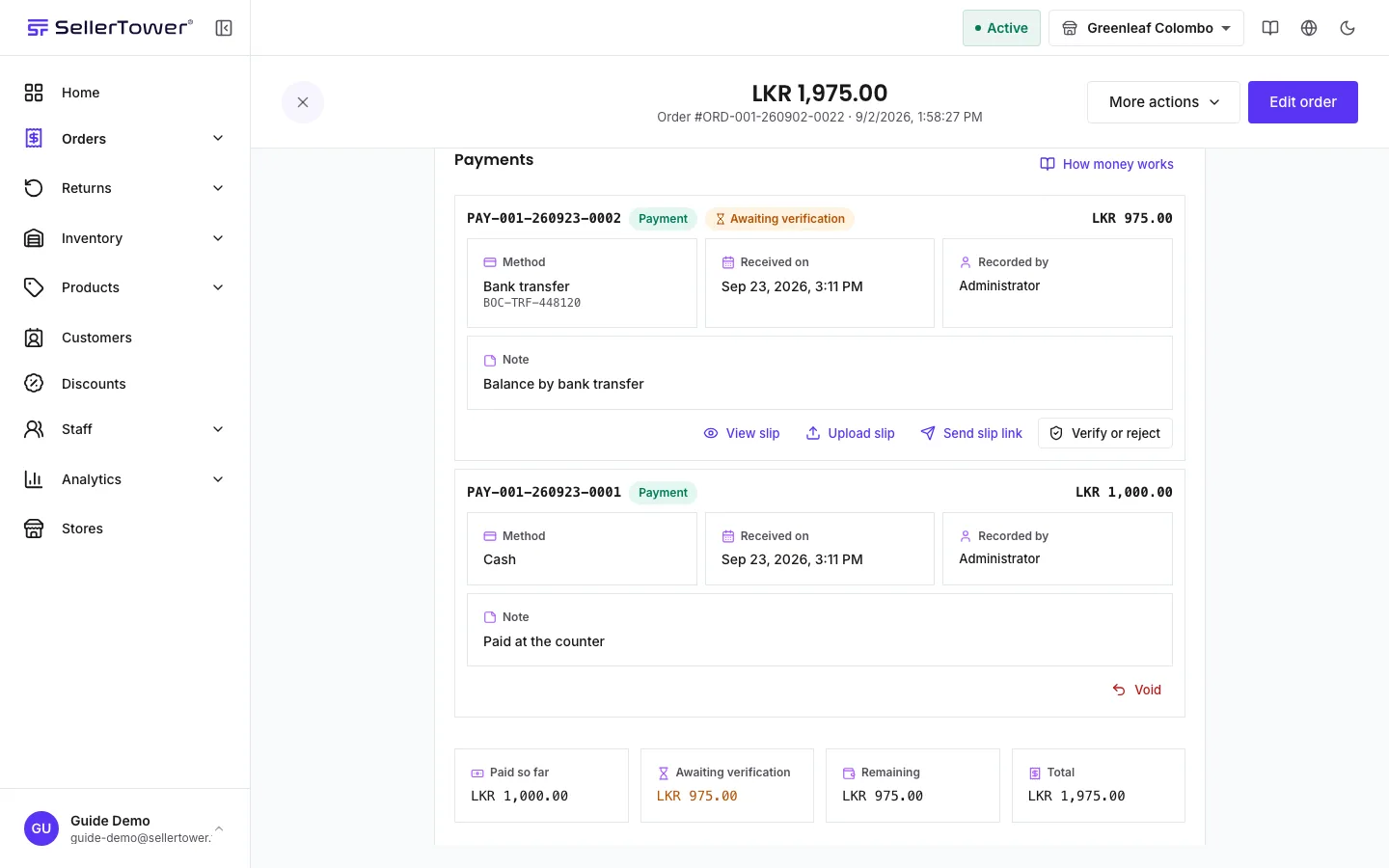
Open the order. The Payments section shows Paid so far, Remaining and Total, then one row per payment with its Method, Received on, Recorded by and any note. A voided payment stays in the list next to the Reversal that undid it, with the reason. An order paid in more than one way also shows a Tendered by tile that lists each method.
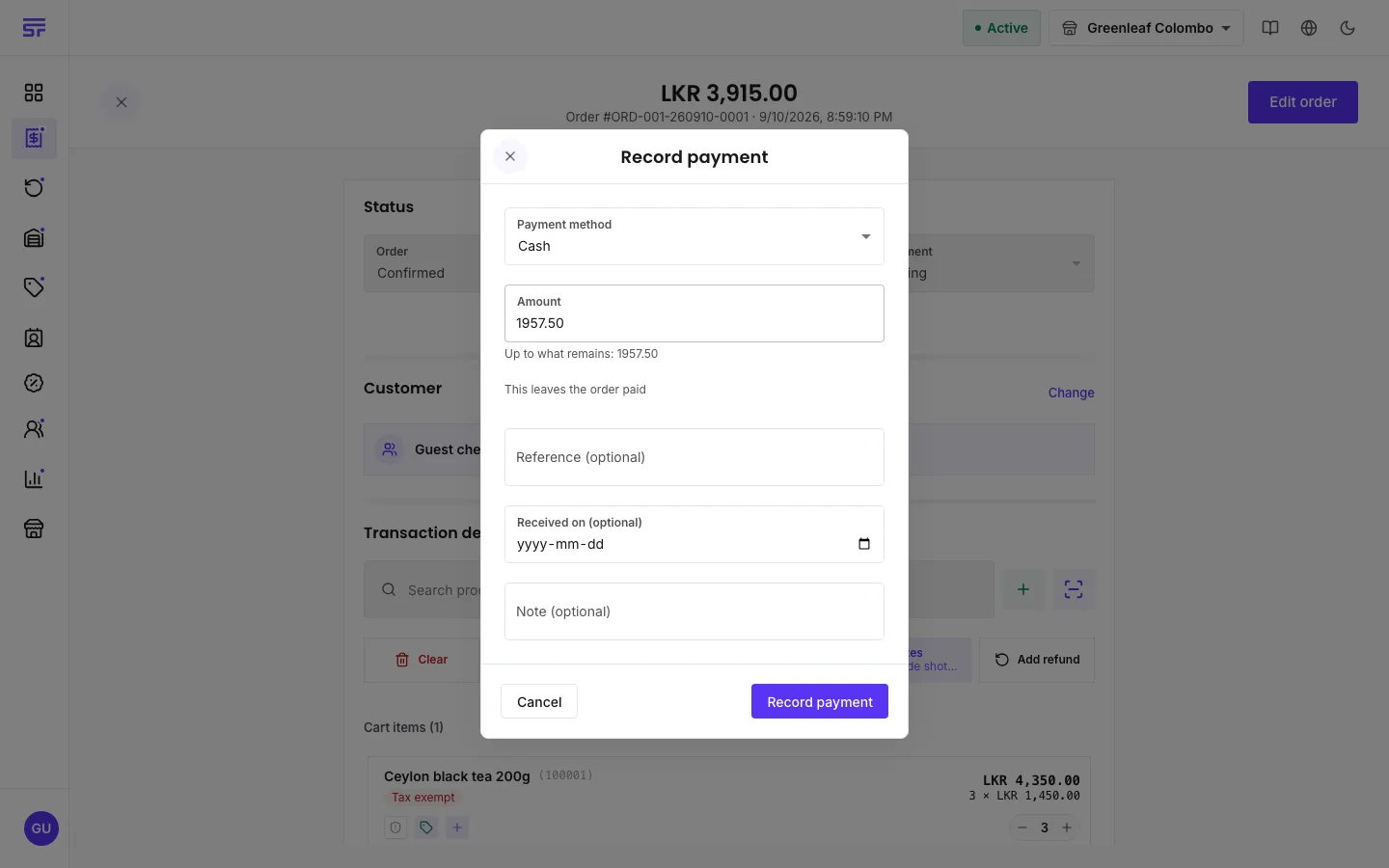
| Field | What it does |
|---|---|
| Payment method | How the customer paid. |
| Amount | Up to what remains. A larger amount is refused. Change given at the till is not a payment. |
| Reference (optional) | A card slip number, a transfer reference or similar. |
| Received on (optional) | The day the money arrived, if it was not today. |
| Note (optional) | Anything your team should know. |
| This is the deposit | Tick it when this payment is the deposit. The Deposit due figure shows beside it. |
| Attach the transfer slip (optional) | Bank transfer only. A JPEG, PNG or PDF of 10 MB or less. |
A payment with the method Bank transfer is saved as Awaiting verification. It does not count toward what is paid until someone confirms the money arrived.
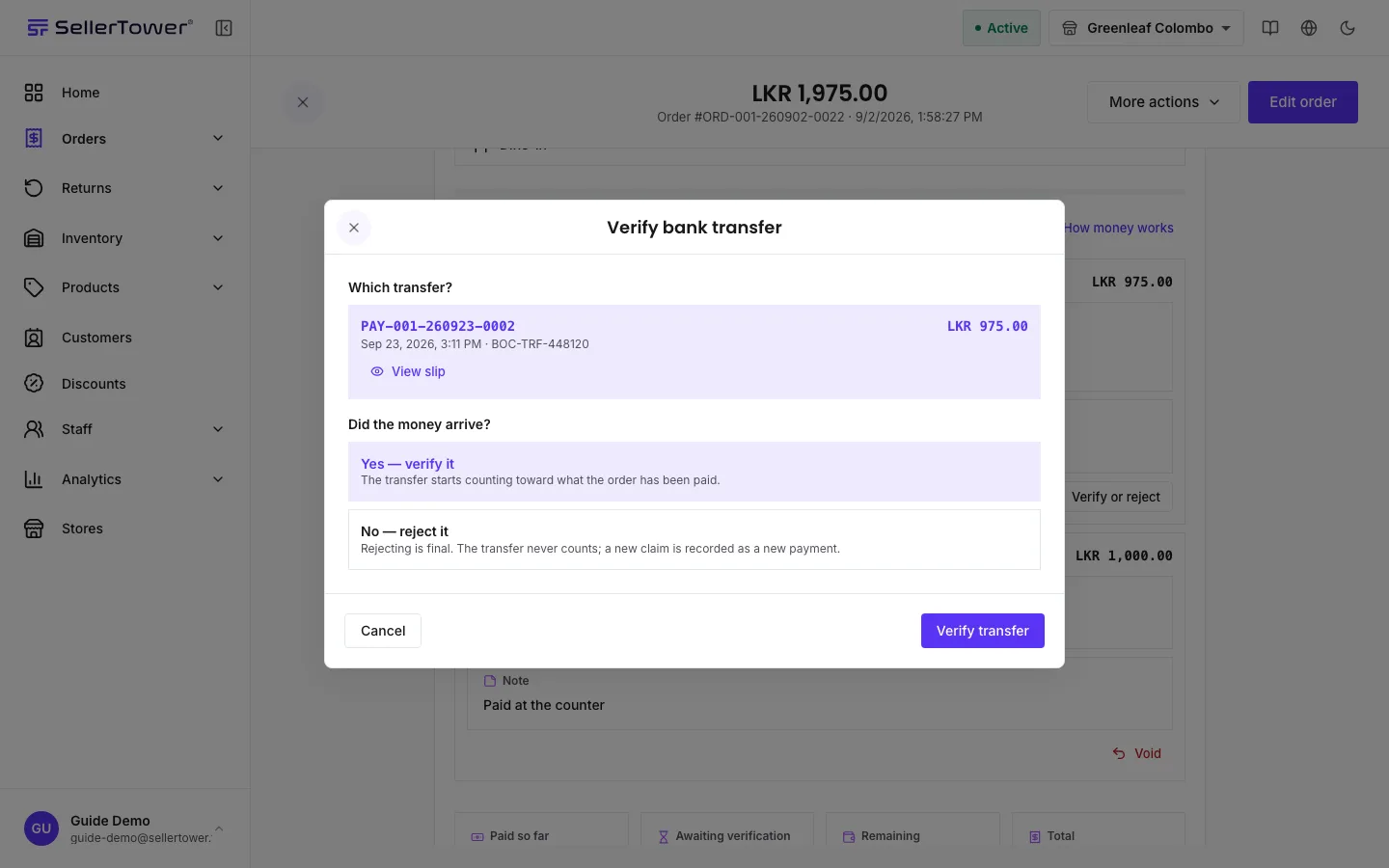
A slip the customer uploads without naming a transfer appears under Unassigned transfer slips. The order cannot be completed until each slip is placed:
A pre-order or customized product can ask for a deposit up front. The order works out the figure from its lines. This is the rule. The figure shows as Deposit due now at checkout and on the pro-forma invoice, and in the order's Commitment section. The deposit is not a second price. The total does not change: the deposit is the first payment, recorded like any other and marked as the deposit.
To take a deposit, press Record deposit in the order's Commitment section. When you place an order that asks for a deposit, the Order placed dialog also offers Record deposit.
Sometimes the rule is not what you agreed with the customer. You can decide the figure yourself while the order is Pending or Confirmed:
What you enter is kept beside the rule, not in its place:
Once the order is Processing, the deposit can no longer be changed.
A payment recorded by mistake is voided, not deleted. A reversal row is added, both rows stay visible, and the reason is kept. You can void while the order is Confirmed or Processing. Once it is completed, money moves through returns and refunds.
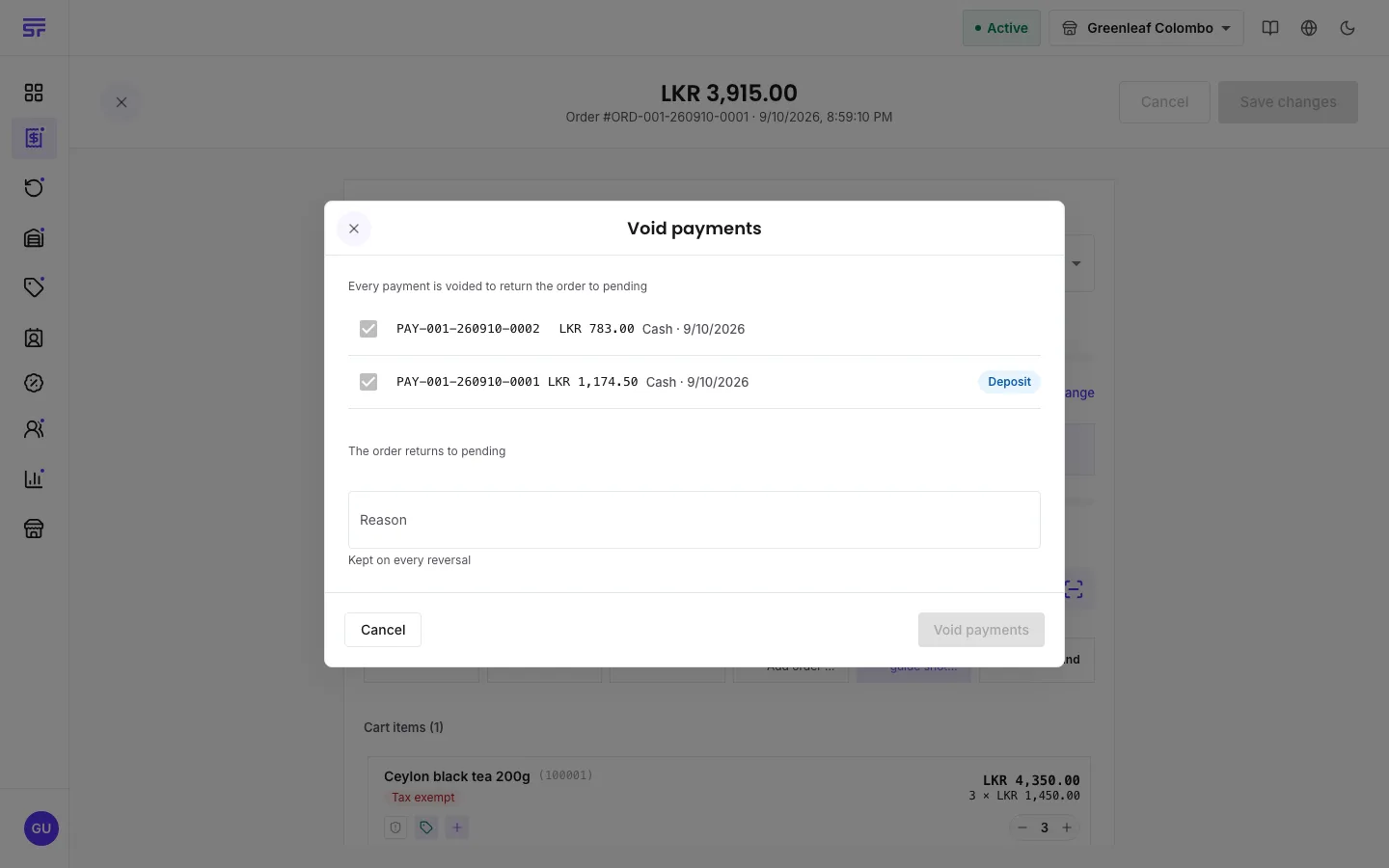
An order paid before payments were kept as rows shows one row marked Recorded before the ledger. It can be voided as a whole, not in parts.
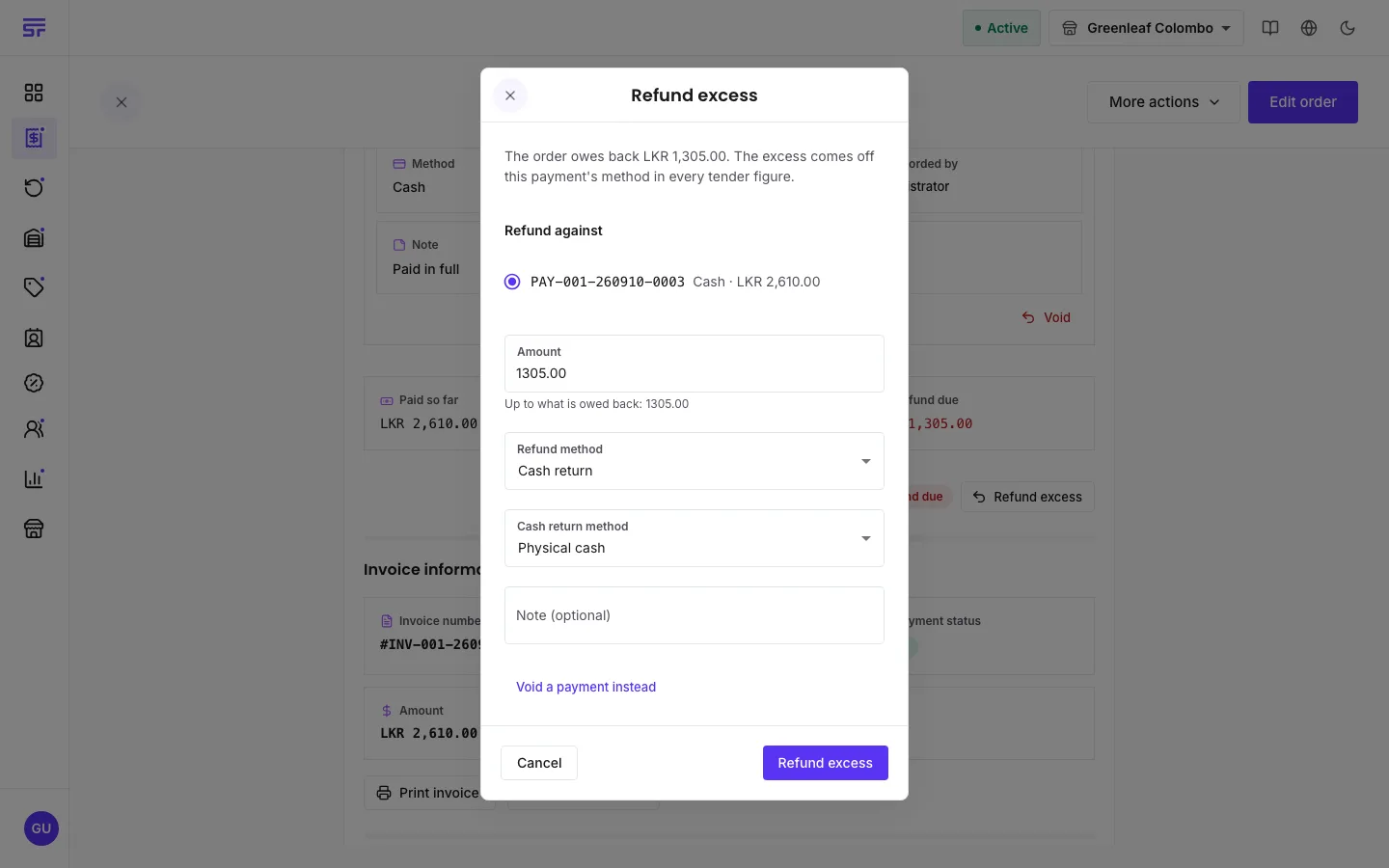
If an edit lowers the total below what has been paid, the order owes money back. It shows a Refund due pill with the figure and cannot be completed until that is settled. You have two choices:
Void a payment that should never have been taken, as above.
Refund the excess. Press Refund excess in the Payments section. The dialog shows what The order owes back, then asks for:
The refund is issued straight away and shows in the Payments section as a Refund row. The order can then be completed.
| Symptom | Cause | Fix |
|---|---|---|
| "This payment is more than the order still owes." | The amount is higher than what remains. | Check Remaining on the order and lower the amount. |
| "The issued invoice no longer states this order's total." | The total changed after the tax invoice was issued. | Reissue the invoice from the order page, then record the payment. |
| Void is missing on a row. | You do not have Void payments, the row is a reversal or refund, or the order is completed. | Ask an Admin or Store Admin, or use a refund on a completed order. |
| Refund excess will not use a bank transfer. | That transfer is still awaiting verification, so it has not counted. | Verify it first, or refund against another payment. |
| An edit is refused because a bank transfer is awaiting verification. | The new total would fall below what is paid and claimed. | Verify or reject the transfer first. |
Payment status · How invoices work · Editing & cancelling orders