
Roles & permissions
The five built-in roles, how the app works out what a staff member can do, and how store scope changes it.
User guide
The five built-in roles, how the app works out what a staff member can do, and how store scope changes it.
Staff get what they can do from roles, and from nothing else. There are no settings per person. What a staff member can do is the total of all the roles they hold. The Administrator is not limited by roles at all.
Who can do this: anyone whose role lets them view roles can open Manage role. Writing your own roles is a separate step, covered on Custom roles. Both depend on your plan (see the badge at the top of the page).
Every business has five ready-made roles. You cannot edit or delete them. When you open one, the app says: "System roles are managed by the platform and cannot be edited." They are always there, even if your plan does not let you write your own.
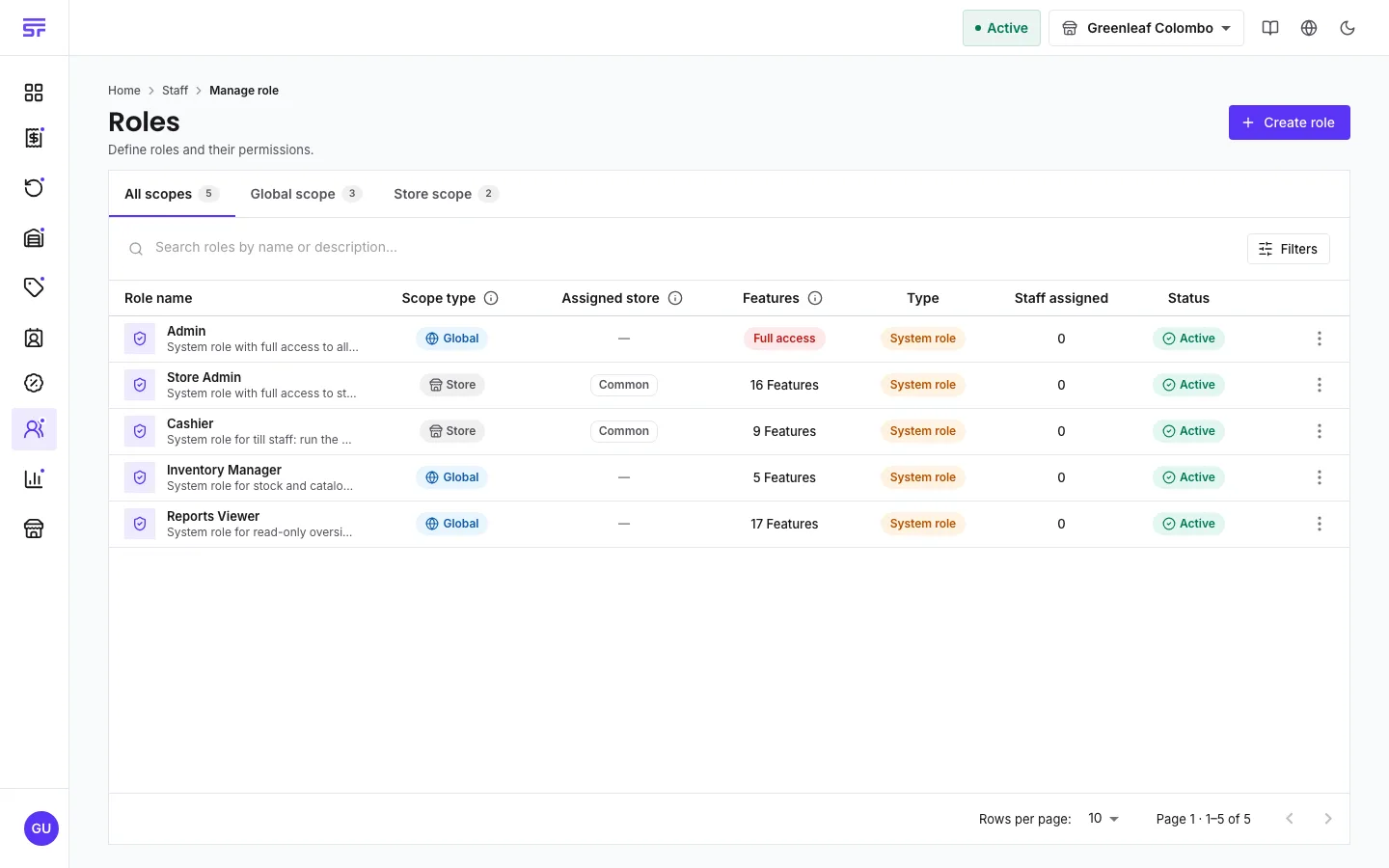
| Role | Scope | What it is for |
|---|---|---|
| Admin | Global | Full access to every feature, in every store. |
| Store Admin | Store | Runs one store: orders, invoices, payments, returns, refunds and stock. Manages customers, staff and roles for that store, and sees its staff activity. Can see the catalogue and discounts but not change them. |
| Cashier | Store | Runs the counter: takes and edits orders, sees the order calendar, sends invoices and payment links, records payments, and handles returns and refunds. Can look up products and add customers. Cannot change the catalogue, prices or staff. |
| Inventory Manager | Global | Full control of products, categories, images and stock across every store. It is global because the catalogue is shared by all stores. |
| Reports Viewer | Global | Can read almost every list and every report, and change nothing. Cannot see customers. |
For the full list of what each role can do, see the Permissions reference.
Every staff member has one of two scopes. You choose it when you invite them.
A role has a scope too. Global staff take global roles. Store staff take store roles.
The app follows these rules every time someone opens a page or presses a button:
| Symptom | Cause | Fix |
|---|---|---|
| A staff member cannot see a button a colleague can see. | Their roles do not include that permission, so the button is hidden. | Give them a role that includes it, or ask the Administrator. |
| A store-scoped staff member sees nothing after signing in. | The top bar is on All Stores. | Ask them to select one of their stores. |
| Someone who had access suddenly has none. | One of their roles was switched off, or they lost their store. | Check the role's status on Manage role, and their stores on their staff page. |