
Discount types
Available on Startup and above
The four discount types you can create, with a worked example of each.
User guide
The four discount types you can create, with a worked example of each.
Every discount starts from one of four type cards. This page explains what each one takes off, with a worked example.
Who can do this: the Administrator and staff with the Admin role create and edit discounts. Store Admin and Reports Viewer can view them. Discounts are a plan feature (see the badge above).
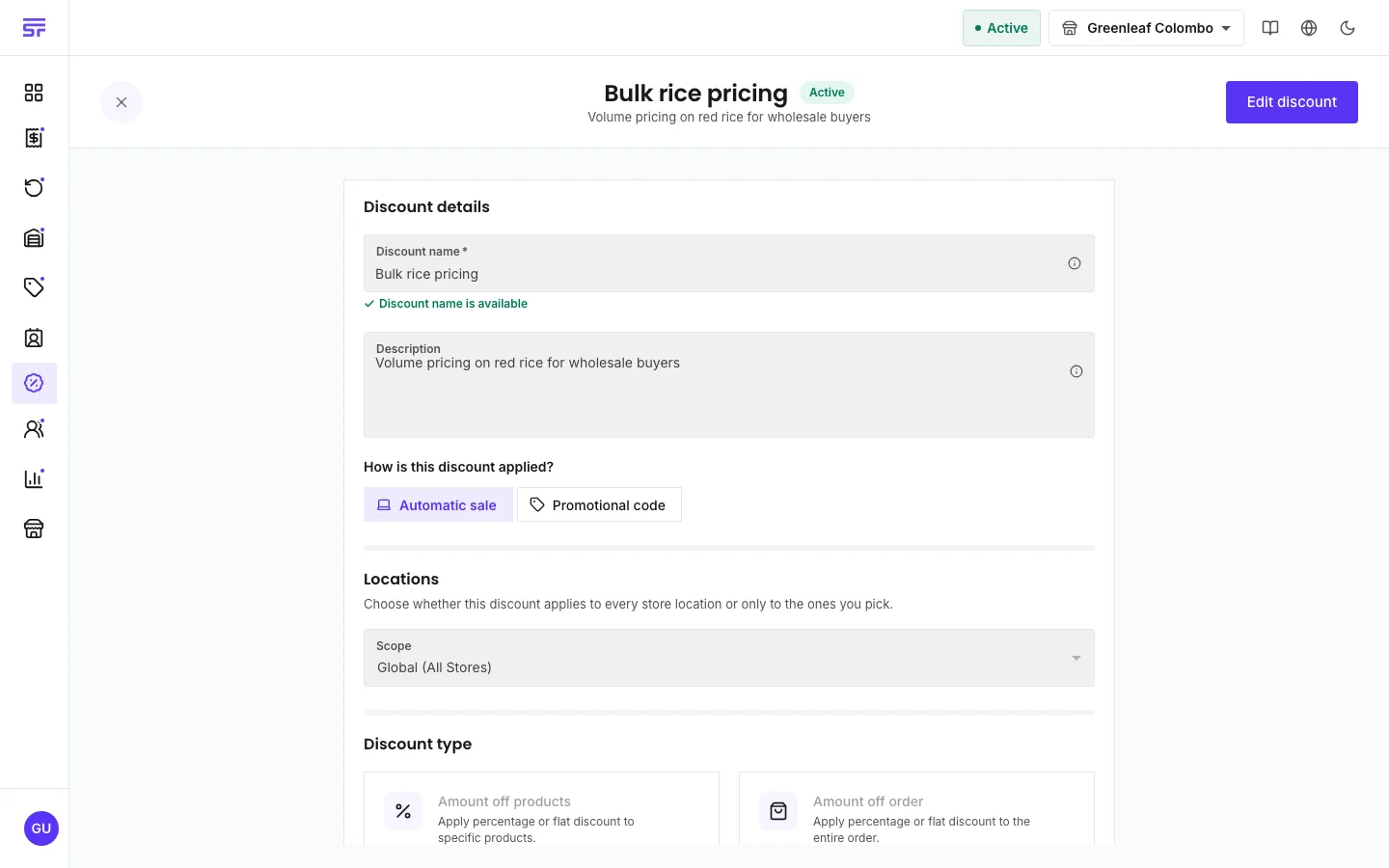
Open Discounts, click Create discount, and go to the Discount type section. The examples use round numbers in your own currency.
For more examples inside the app, click the information button next to Discount options. It opens a page that explains each type.
A percentage or a flat amount off chosen products or categories. Under Applies to, choose All products, Specific products or Specific categories.
The app adds up the lines that qualify, works out the discount on that total, and shares it across those lines.
20% off T-shirts. The cart has two shirts at 25.00 each and jeans at 40.00. The shirts add up to 50.00, so the discount is 10.00. It is shared across the two shirt lines. The jeans are not touched.
A percentage or a flat amount off the whole cart.
If this discount stacks with a product discount, it is worked out on what the lines cost after the product discount.
The cart is 100.00. A 20% product discount takes 20.00 first. A 10% order discount then takes 10% of the 80.00 that is left, which is 8.00, not 10.00.
The customer buys a set quantity of some products (Customer buys (prerequisite X)) and gets other items free or cheaper (Customer gets (target Y)). Under At a discounted value, enter the Discount percentage for the target items: 100 means free, 50 means half price.
Two rules to know:
Buy 2 get 1 free on drinks at 2.00 each. The cart has six drinks, so the deal applies twice: 4.00 off. At 50% off the third drink instead of free: 2.00 off.
Mix & match counts the total quantity across all the products you chose. Specific quantities sets a quantity for each product.
Price breaks by quantity on one line. Under Volume price threshold tiers, click Add tier for each tier and enter a minimum and maximum quantity. The tier that contains the line's quantity applies. A tier can be Percentage (%), Fixed Off (one amount off the whole line) or Flat Price (a new unit price for the line).
A tier "5 to 9 items, unit price 8.00" on an item that costs 10.00. A line of 6 items pays 6 × 8.00, so 12.00 off. A tier "10 or more, 15% off": a line of 12 items at 10.00 gets 18.00 off.
Tiers cannot overlap, and nothing can come after a tier with no maximum.
At checkout, the person taking the order can also type a custom discount in the Discounts & promo codes window. It is a cash amount or a percentage off the whole order, or a cash amount off one line. It applies after every saved discount and has no limits or schedule. See How discounts work.
| Field | What it means |
|---|---|
| Amount type | Percentage (%) or Flat amount. A percentage cannot be more than 100. |
| Minimum order subtotal | Under Minimum spend. The cart must reach this amount before the discount applies. |
| Exclusions | Products or categories that never get this discount. |
| Count excluded items toward the minimum | When on, excluded items still count towards the minimum spend. |
| Symptom | Cause | Fix |
|---|---|---|
| A Buy X get Y discount does not apply with 2 items in the cart. | The free item cannot also count as a bought item. | Add the third item. |
| The customer got a cheaper item free, not the one they expected. | Buy X get Y always discounts the cheapest eligible items first. | This is expected. |
| You cannot save a volume tier. | Tiers overlap, or a tier follows one with no maximum. | Fix the quantities so each tier starts after the one before. |
How discounts work · Rules and scheduling · Combining discounts