
Categories
Build the category tree, add products to categories, and what deleting a category does.
User guide
Build the category tree, add products to categories, and what deleting a category does.
Categories organise your catalogue. There is one tree for the whole business. Each category can have one parent, and a product can sit in any number of categories. For example, a Ceylon tea can be in both Tea and Gift ideas.
Who can do this: the Administrator and the Admin and Inventory Manager roles have full control. Adding products to a category is a separate permission, so a custom role can sort products into categories without being able to rename or delete them. Everyone else can view the tree.
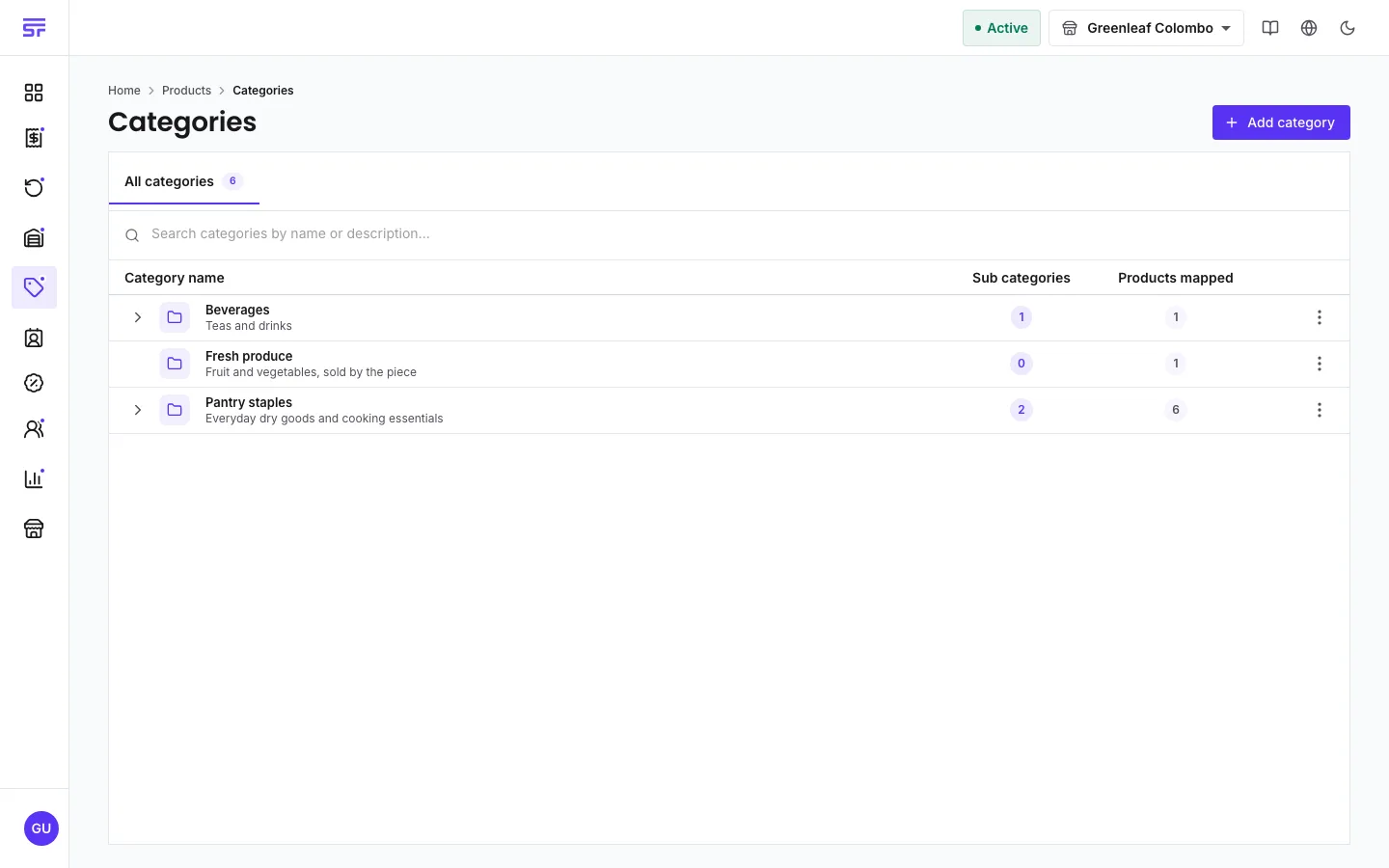
To add a category directly under another one, open that row's menu and select Add sub category.
You can do this from either side:
Large changes are saved in small batches, so adding a whole range to a new category can take a moment.
The dialog explains what happens: "Its sub-categories are kept and move up to this category's parent. Products lose only this category. They are not deleted."
When you remove a category in the middle of the tree, the tree gets flatter. Its sub-categories move up to its parent, or become top-level. Every product in it only loses that one category. Nothing else is deleted.
| Symptom | Cause | Fix |
|---|---|---|
| "A category with this name already exists." | Another category has that name. | Pick a different name. |
| You can see categories but not change them. | Your role can only view categories. | Ask someone with the Admin or Inventory Manager role. |
| Products seem to have left a category. | The category was deleted, so products lost only that category. | Create it again and add the products back. |